
Kodare manual
For Kodare 26.4.0373 (beta), released . Older or newer version? See the release notes.
What changed in 26.4.0373
This is the first public release: everything in this manual is new. Later releases list their changes here, and mark the sections they change with New in … or Changed in ….
Install and first start
Install Kodare from the download section (RPM, .deb, AppImage or the dnf
repository). You also need Claude Code
and a Claude account; git and the GitHub CLI gh are optional.
- Start Kodare from the application menu, or run
kodare(orkodare ~/my-project) in a terminal. - With no project open, choose Open folder (or press Ctrl+Shift+N) and pick a project folder.
- The upper terminal starts Claude Code. The first time in a folder, Claude Code asks whether you trust it;
the first time at all, log in with
/login. If Claude Code is not installed, Kodare offers to install it with Anthropic's official installer. - Work with Claude Code in the upper terminal, use the lower terminal yourself, and open files from the Explorer on the left.
Kodare has no account of its own and no telemetry. It runs Claude Code under your own Claude account.
The window
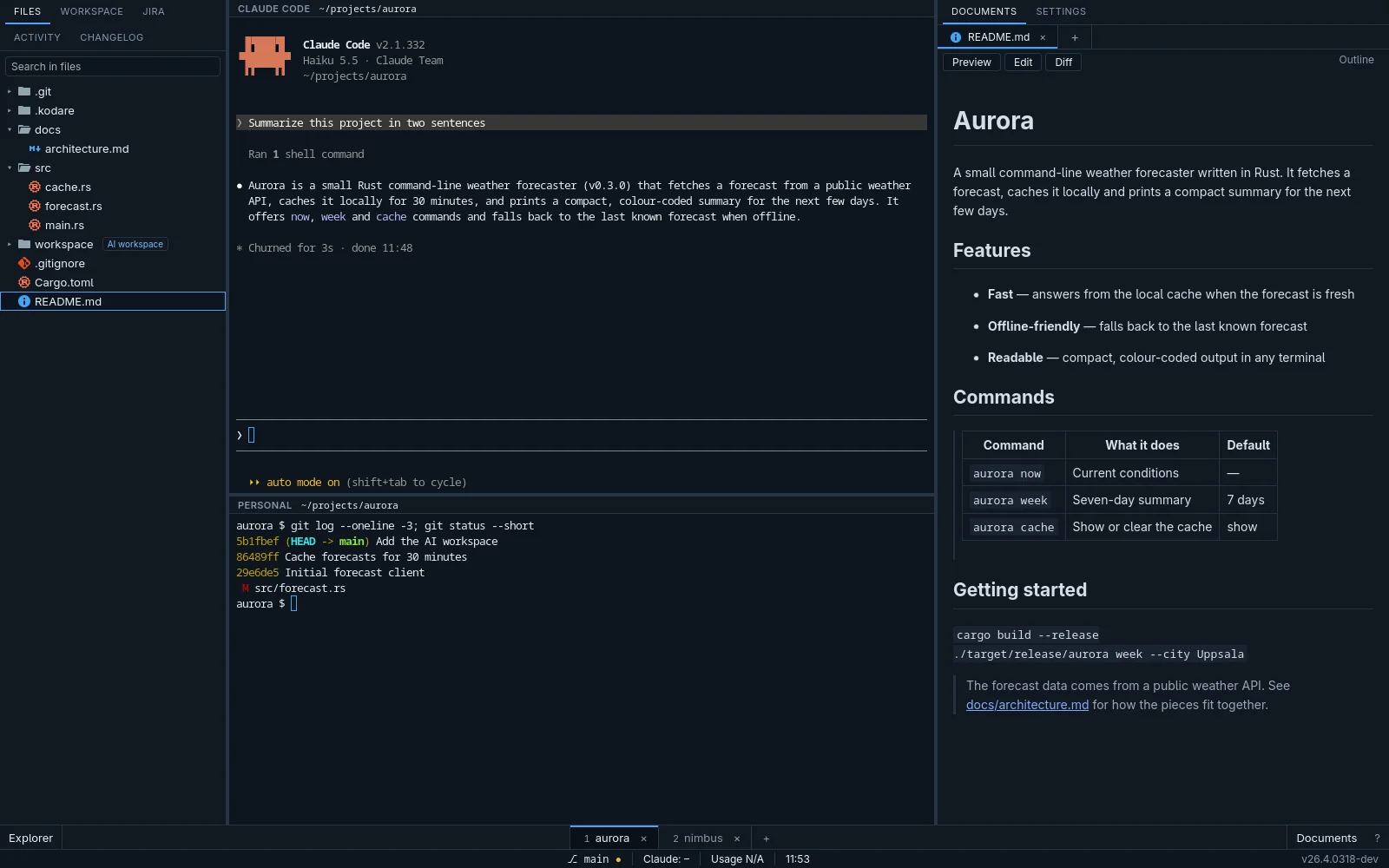
- Left panel — the tabs Files (the Explorer) and Workspace (widgets), and, when turned on, Activity, Jira and Changelog. Left/Right move between the tabs.
- Middle — two terminals: Claude Code above and Personal below. Drag the bar between them to resize; Ctrl+Shift+Enter zooms the focused terminal (again: back to the split).
- Right panel — Documents and Settings.
- Bottom bar — the Explorer toggle, the project tabs, + (open a folder), the Documents toggle and ? (About Kodare).
- Statusbar — the Git branch (
●uncommitted changes,✓clean), the Claude Code sessions (“Claude: 1 busy · 0 waiting”), Claude usage, the time and Kodare's version.
Hide or show the Explorer with Ctrl+Shift+B and Documents with Ctrl+Shift+D, or drag a panel narrower than 80 px to fold it away; a hidden panel's edge can be dragged open again. F11 is fullscreen. Kodare has one dark theme; the terminal font size changes with Ctrl+=, Ctrl+- and Ctrl+0.
Short messages appear as notices in the lower right; × dismisses one.
Projects
A project is a folder. Each project has its own tab with its own terminals, documents and layout.
- Open a folder with Ctrl+Shift+N, the + on the tab bar, or
kodare <folder>in a terminal (a running Kodare takes the folder over and comes to the front). An open project is just shown again. - Switch with Alt+1 … Alt+9 (the number is on the tab) or Ctrl+Shift+PageUp/PageDown. Terminals in background tabs keep running; a tab shows when a command is running or there is new output.
- Close a project with the × on its tab. Kodare asks first about unsaved documents and running jobs (see Closing Kodare).
- Restore: the projects that were open when you quit open again at the next start, in the same order, with their documents and layout.
The .kodare folder
Kodare keeps a project's state in .kodare/ in the project: project.json (layout,
open documents, terminal folders), settings.json (your settings for this project on this machine)
and config.json (settings shared with everyone who works on the project). A new
.kodare/.gitignore keeps everything except config.json out of Git.
Trust
Some features use files from the project itself: HTML pages that run when opened, a Jira site named in
config.json, an AI workspace outside the project. Kodare asks before it uses them —
Trust this project? with Trust or Not now. Revoke it in Settings › Project.
Terminals and Claude Code
Both terminals are real terminals running your login shell, in the project folder. Full-screen programs, colours and your normal environment work. The header shows the terminal's name and current folder.
Claude Code in the upper terminal
- The upper terminal starts
claudeand, when Claude Code exits, carries on as a normal shell. Turn this off in Settings › Global › Claude Code (Start Claude Code in the upper terminal). - If Claude Code is not installed, Kodare runs Anthropic's installer (
https://claude.ai/install.sh) in the terminal; Ctrl+C cancels it. - With Continue from the worklog when it starts on and an AI workspace, Claude Code's first prompt asks it to read the worklog, report where the work stands and wait for you.
- Kodare follows Claude Code's state (waiting for you, busy, asking you) and shows it in the statusbar, the Claude widget and the close questions.
- Automatic start works with bash, zsh, fish, sh, dash, ksh and mksh; in other shells type
claudeyourself.
Keys in a terminal
Every key goes to the program in the terminal except Kodare's own shortcuts. That includes Ctrl+C (interrupt, unless text is selected), Ctrl+Z, Ctrl+D, Ctrl+R, arrows and F-keys. Note that Ctrl+P and Ctrl+N are Kodare's (Quick open, New document) by default; change them in Settings if your shell needs them.
| Keys | Action |
|---|---|
| Ctrl+Shift+C, or Ctrl+C with text selected | Copy |
| Ctrl+Shift+V, Shift+Insert | Paste |
| Ctrl+V | Paste; with Claude Code in front and an image on the clipboard, Claude Code attaches the image; vim, less and other full-screen programs get ^V |
| Shift+Enter (Claude Code in front) | A new line in Claude Code's prompt |
| Select text, then middle-click | Paste the selection |
| Ctrl+= / Ctrl+- / Ctrl+0 | Font size bigger / smaller / default, for all terminals |
Pasted text has control characters removed. Right-click a terminal for Copy, Paste, Zoom/Restore split, Restart shell and Clear. A shell that exits is restarted in the same folder; if it keeps exiting, Kodare waits for Enter.
Files
The Files tab is the Explorer: the project's files and folders, with icons by file type.
- Click a file to preview it in Documents (the next preview replaces it); double-click or Enter keeps it open.
- Right-click for New file, New folder, Rename,
Duplicate, Move to trash, Cut, Copy, Paste, Copy path,
Copy relative path, Reveal in file manager and Open in terminal (types
cdinto the Personal terminal when it is idle). - Keys: arrows, Home/End, F2 rename, Delete move to trash (asks first), F5 reload, Ctrl+C/Ctrl+X/Ctrl+V, Shift+F10 or the menu key for the menu.
- Drag an entry onto a folder to move it (Esc cancels). Drop files from your file manager onto a folder to copy them into the project.
Search in files
Type at least two characters in Search in files above the tree. The search is case-insensitive and
literal, except * (any text within a line) and ? (one character). Results replace
the tree, one row per hit; Esc ends the search. Binary files, files over 5 MiB and Git-ignored
files are skipped (Settings › Project › Include Git-ignored files changes the last).
Quick open
Ctrl+P finds a file by typing parts of its path (the letters in order). Recent files come first.
main.rs:42 opens the file at line 42.
Files matched by the excluded patterns (Settings › Global › Files) are hidden unless Show excluded files is on. An AI workspace folder inside the project is marked AI workspace.
Documents
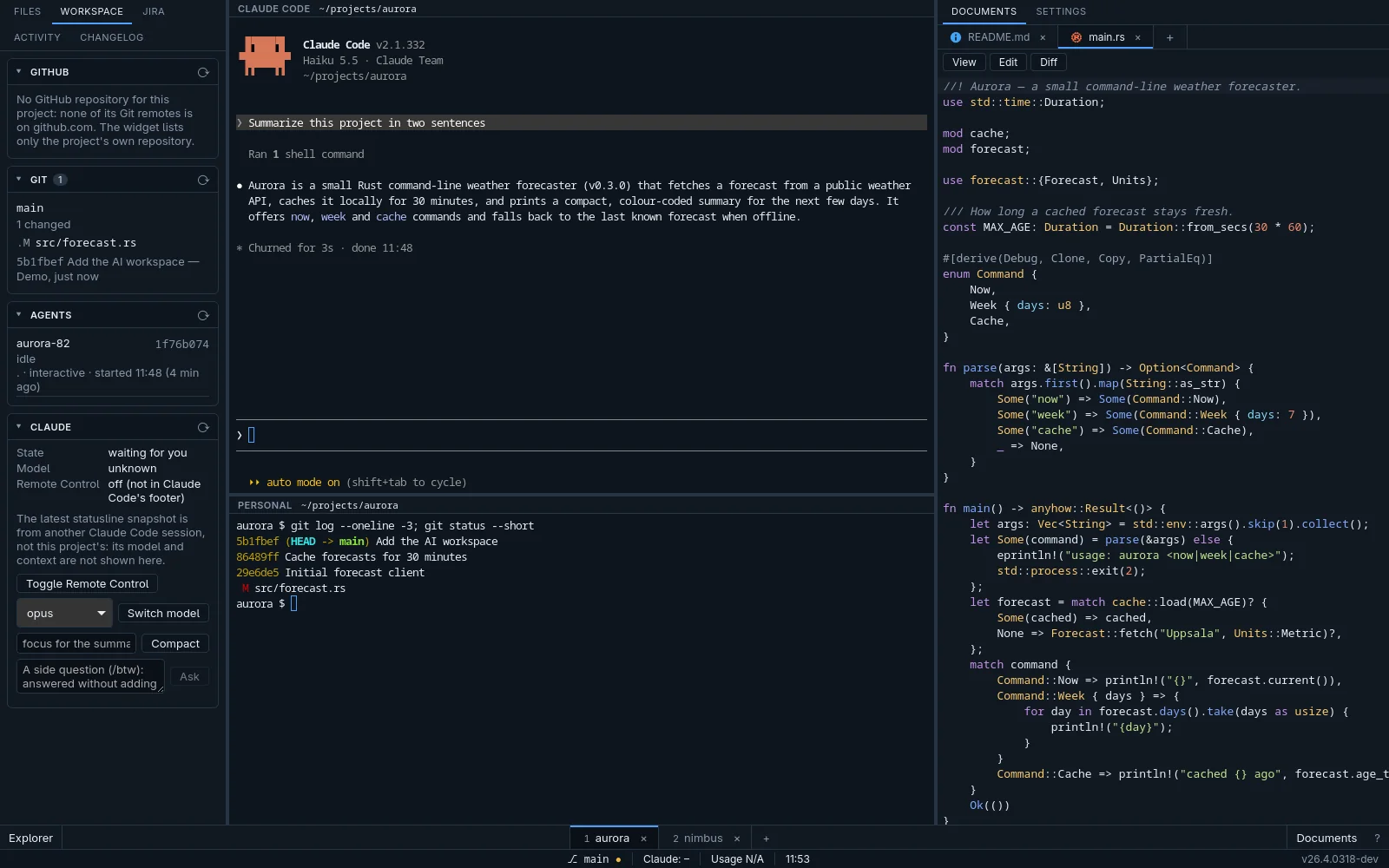
Documents shows files in tabs beside the terminals. A dot on a tab means unsaved changes. Ctrl+N (or +) makes a new untitled document; Ctrl+S saves while Documents has the focus. A middle-click closes a tab; right-click a tab for Keep open, Close others, Close all, Save all and Restore backup….
Each kind of file has modes, chosen with the buttons above the document:
| File | Modes |
|---|---|
| Markdown | Preview (rendered and editable in place), Edit, Diff |
| HTML | Rendered (sandboxed), Edit, Diff |
| SVG | Image, Edit, Diff |
| PNG, JPEG, GIF, WebP, BMP, ICO | Image |
| CSV | Table, Edit, Diff |
| JSON, JSONL, YAML, TOML, CSS | Tree, Edit, Diff |
| Pages with zoom, Fit width and Open in browser | |
| Everything else | View, Edit, Diff |
- Edit: syntax highlighting and line numbers; the line with the cursor shows its Git blame.
- Markdown preview: edit the rendered text directly — Ctrl+B bold, Ctrl+I italic, Ctrl+E code, Tab/Shift+Tab in lists, Ctrl+click follows a link. Tables and Mermaid diagrams are shown rendered. Outline lists the headings.
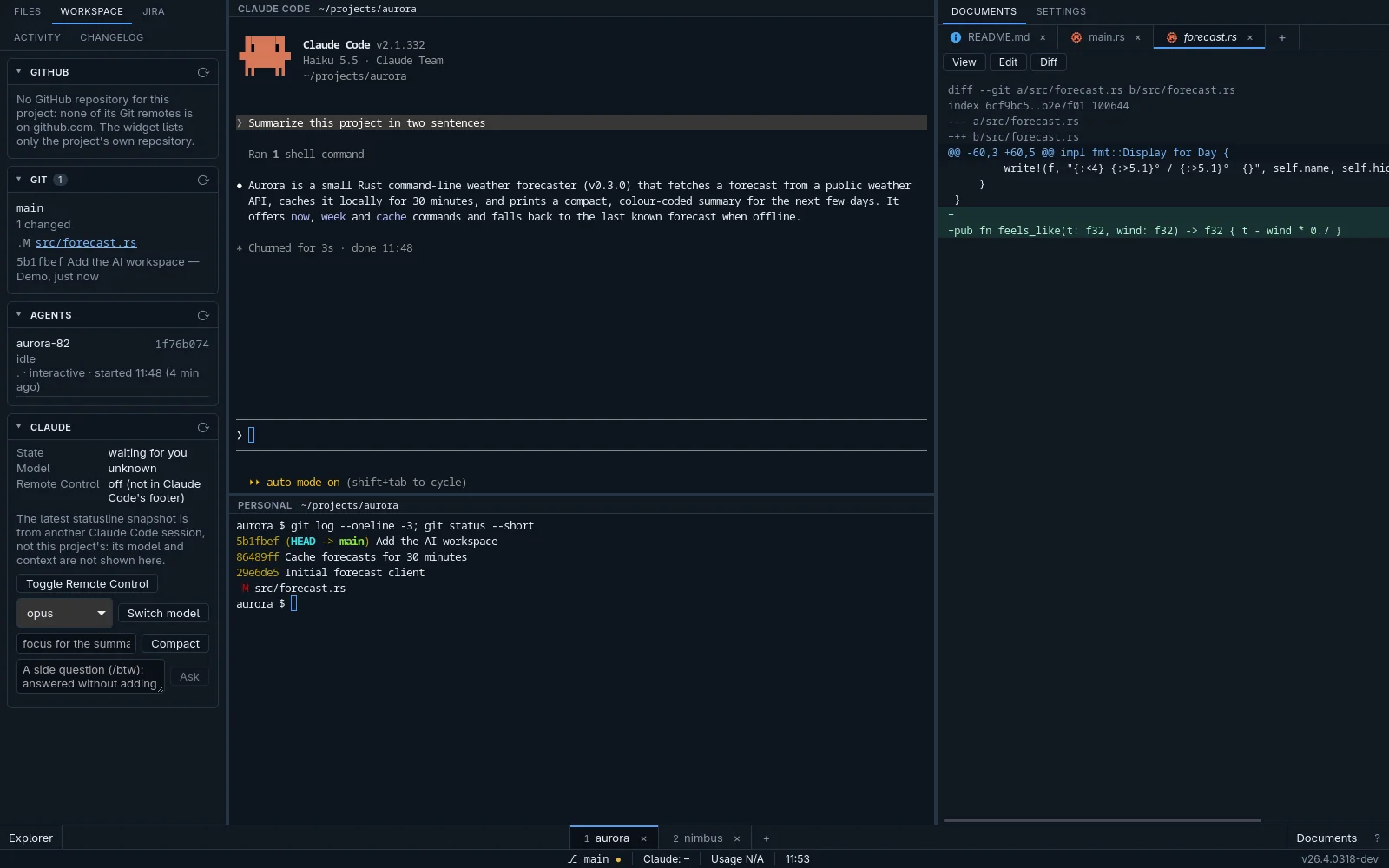
- Diff: the file's uncommitted change against the last commit.
- HTML: a page never runs by itself — Run page runs it, without network access, and links ask before they open. In a trusted project pages run when opened.
- Tree: filter, Expand all/Collapse all; right-click to copy a value or its path, or jump to it in Edit.
Changes on disk, saving and backups
- A file changed on disk (by Claude Code or anyone else) reloads by itself when you have no unsaved changes. With unsaved changes, saving is blocked until you choose: View disk version, Overwrite disk with mine… or Discard mine and reload…. A save never silently overwrites a newer file.
- Before every save Kodare keeps a copy of the old file (the last 10 per file, until the next reboot). Restore backup… on a tab loads one as unsaved changes.
- With Keep drafts of unsaved documents for crash recovery on (Settings › Global › Files), unsaved changes survive a crash and are offered at the next start.
Workspace and widgets
The Workspace tab holds widgets. Click a widget's title to fold it, ⟳ to refresh it. Choose which widgets are shown, and their order, in Settings › Project › Widgets. Jira, Activity and Changelog get tabs of their own next to Workspace.
- Decisions
- The decisions waiting for your answer — see Decisions.
- Git
- The branch (with ↑ ahead / ↓ behind), a merge or rebase in progress, the changed files (a click opens
the file's diff) and the last commit. Needs
git. - GitHub
- Review requests, mentions, your pull requests and notifications for the project's github.com repository,
read with the GitHub CLI (
gh auth loginfirst). A pull request opens as a document with its description, reviews, comments and diff; comments and replies are previewed before they are published. - Agents
- The Claude Code sessions in this project (also background ones): name, state, folder and start time.
- Claude
- The Claude Code terminal's state, model, effort and how much of the context is used. Choosing a model or
effort, or Compact, types
/model,/effortor/compactinto Claude Code — only when Claude Code is waiting with an empty prompt, never over your unsent text. Model, effort and context need the usage hook. - Jira
- Your Jira Cloud issues, filtered by status. A click opens the issue as a document; right-click to change its status. Set the site, e-mail and API token in Settings › Project › Widgets › Jira (Test connection checks them); the token is kept in your system keyring.
- Activity
- One stream of Git commits, Kodare's actions and Claude Code sessions, filtered by source.
- Changelog
- The commits since the latest Git tag.
Decisions
When Claude Code needs you to decide something, it writes a decision into the project's
AI workspace with the kodare-decision command (installed with
Kodare), and Kodare shows it. Decisions and answers are plain files in decisions/, kept with the
project; Claude Code reads your answer from there.
- Waiting decisions are listed in the Decisions widget, blocking ones first, with a count on the Workspace tab and the project tab. A new decision also shows a notice and, while Kodare is not focused, a desktop notification (your desktop's do-not-disturb applies).
- A decision opens as a document: why Claude needs the answer, the questions and their options (with descriptions and previews), what depends on the answer and the files it concerns. Claude's recommendation is marked but never pre-selected.
- Answer: choose the options (Other… for your own words, + Add a comment for a note), then Review answer…. The confirmation lists every answer; nothing is written before Save answer.
- Change an answer with Correct answer…. The new version is the one Claude Code reads; earlier versions stay in the history.
- History lists every decision with its answers and who gave them (in Kodare, automatically by Claude Code, or an answer file written elsewhere), with filters and search.
- The Decision Inbox window (Open Inbox window in the widget,
kodare --decisions, or Decision Inbox in the application menu's actions for Kodare) shows the same list and decisions in a window of its own. It follows the active project tab, or a project you choose; it can stay on top and open at start.
Keys
| Keys | Action |
|---|---|
| Up/Down, Home/End | Move between decisions in a list, or between the options of a question |
| Enter | Open the decision; on an option: choose it and go to the next question |
| 1 … 9 | Choose the n-th option (a checkbox toggles) |
| Space | Choose an option, toggle a checkbox |
| Tab/Shift+Tab | Next / previous question |
| Ctrl+Enter | Review the answer; Enter in the confirmation saves it |
| Esc | Leave a field, close the confirmation, then back to the list |
| Ctrl+W (Inbox window) | Close the window |
Auto mode
In Settings › Project › Widgets › Decisions, Claude Code may answer can be Off (the default), Normal or All except locked. Then Claude Code may propose an answer, and Kodare saves it after a countdown (3–120 s, default 10) unless you step in: Pause, or click, type or focus anything in that decision. A paused proposal is never saved by itself. Blocking decisions need All except locked, and decisions marked as needing a person are never answered automatically.
AI workspace and worklog
The AI workspace is an optional folder for the work around the code that Claude Code and you share: plans,
requirements, decisions and a rolling worklog. By default it is workspace/ in the project; it can
also be another folder in the project or a folder outside it (Settings › Project › This project › AI
workspace; a folder outside the project is used once you trust the project).
Initialize structure (in Settings or the Decisions widget) creates the standard folders —
project/, requirements/, planning/, quality/,
worklog/, changelog/, decisions/ — with README files that tell Claude
Code how to use them. It never overwrites anything and can be run again.
The worklog
worklog/worklog.md is where Claude Code records where the work stands: a Current state
section first, rewritten as things change, then dated entries. When Claude Code starts, Kodare can ask it to
read the worklog and report before doing anything; before Kodare closes, it asks Claude Code to bring the
worklog up to date. So a restart, a crash or a new day continues where you left off.
Settings
Open Settings with Ctrl+, or the Settings tab next to Documents. Changes are saved at once (a field when you leave it or press Enter; Esc undoes the edit). There are two tabs:
- Global
- General: terminal font size, scrollback lines and prompt; excluded files and drafts; the default AI workspace folder; and every keyboard shortcut (click a field and press keys; Backspace turns a shortcut off). Claude Code: starting Claude Code, continuing from the worklog, the Claude Code CLI and its version (Test), the Agents refresh and Claude usage.
- Project
- Widgets: which widgets are shown and their order, and the Jira, Agents, GitHub and Decisions
settings. This project: trust, the AI workspace, search, the settings shared through
config.json, andKODARE.md.
Global settings are in ~/.config/kodare/settings.json. A project's settings are in
.kodare/settings.json (this machine) and .kodare/config.json (shared: the Jira site
and projects, the widgets and an AI workspace inside the project). A few settings are only edited in the
file, for example "claude": { "autoInstall": false } or "claude": { "path": "…" }.
Claude usage in the statusbar
With a Claude Pro or Max subscription, the statusbar can show how much of your 5-hour and 7-day limits you have used (“5h 12% · 7d 30%”), and the Claude widget the model, effort and context. The numbers come from Claude Code's statusline:
- Settings › Global › Claude Code › Claude usage › Show the change…
- Check the preview of the one setting that changes (
statusLinein~/.claude/settings.json), then Install.
Kodare backs up the file first, and your own statusline keeps running. Remove puts the previous value back. The usage is for your whole account, not per project.
Closing Kodare
When you close the window (or a project), Kodare asks, in this order:
- Unsaved documents — Save all, Discard or Cancel. A decision answer you have started is listed too; it is saved only through its own confirmation.
- Running jobs — what still runs in the terminals (a program, Claude Code working, or text you have not sent to Claude Code): Close anyway or Cancel. An idle Claude Code is not asked about.
- Claude's status — Kodare asks Claude Code to update the worklog and waits for it (Saving Claude's status…, at most two minutes); Close now skips the wait.
Then the terminals are ended. If the window stops responding, Close without saving closes it anyway.
Keyboard shortcuts
Kodare's own shortcuts work everywhere, also in a terminal. Change or turn them off in Settings › Global › General › Keyboard shortcuts.
| Keys | Action |
|---|---|
| Ctrl+Shift+N | Open a folder as a project |
| Ctrl+Shift+PageUp / Ctrl+Shift+PageDown | Previous / next project tab |
| Alt+1 … Alt+9 | The project tab with that number |
| Ctrl+Shift+B | Show or hide the Explorer |
| Ctrl+Shift+D | Show or hide Documents |
| Ctrl+Shift+Enter | Zoom the focused terminal (again: restore the split) |
| F11 | Fullscreen |
| Ctrl+N | New document |
| Ctrl+P | Quick open a file |
| Ctrl+, | Settings |
| Ctrl+= / Ctrl+- / Ctrl+0 | Terminal font size bigger / smaller / default |
| Ctrl+S (in Documents) | Save |
Terminal, Explorer, Markdown and decision keys are listed in their sections above.
Command line
kodare [folder …]- Starts Kodare with these folders as projects. If Kodare is already running, it opens them there and comes to the front.
kodare --decisions [folder]- Opens (or brings forward) the Decision Inbox window.
kodare-decision- Claude Code's side of decisions:
list,show,new,validate,withdraw,supersedeand, in auto mode,answer(a proposal). It never writes your answer and never starts Kodare.kodare-decision --helpexplains each command.
Where Kodare keeps things
~/.config/kodare/— global settings, the open projects and window state, the auto-mode levels.<project>/.kodare/— the project's layout and settings (see Projects).~/.local/state/kodare/— the error log and, if turned on, drafts of unsaved documents.- Backups of saved files and Claude Code's hook state are kept in your runtime folder until the next reboot.
- API tokens (Jira) are kept in your system keyring. Kodare changes nothing under
~/.claudeexcept the onestatusLinesetting, and only when you install the usage hook.
Kodare sends nothing by itself: no telemetry, no crash reports.
Troubleshooting
- The window is blank
- On some graphics drivers: start Kodare with
WEBKIT_DISABLE_DMABUF_RENDERER=1 kodare. - Claude Code does not start
- Check Settings › Global › Claude Code (Test shows the program and version). Claude Code must be
installed and logged in (
claude, then/login). - The usage shows “Usage N/A”
- Install the usage hook; the numbers need a Pro or Max subscription and appear after Claude Code's next answer.
- Reporting a bug
- About Kodare (?) › Copy diagnostics… shows Kodare's version, your system and the newest entries of the local error log, with tokens and home folder paths removed, and copies it when you click Copy. Paste it into an issue.